
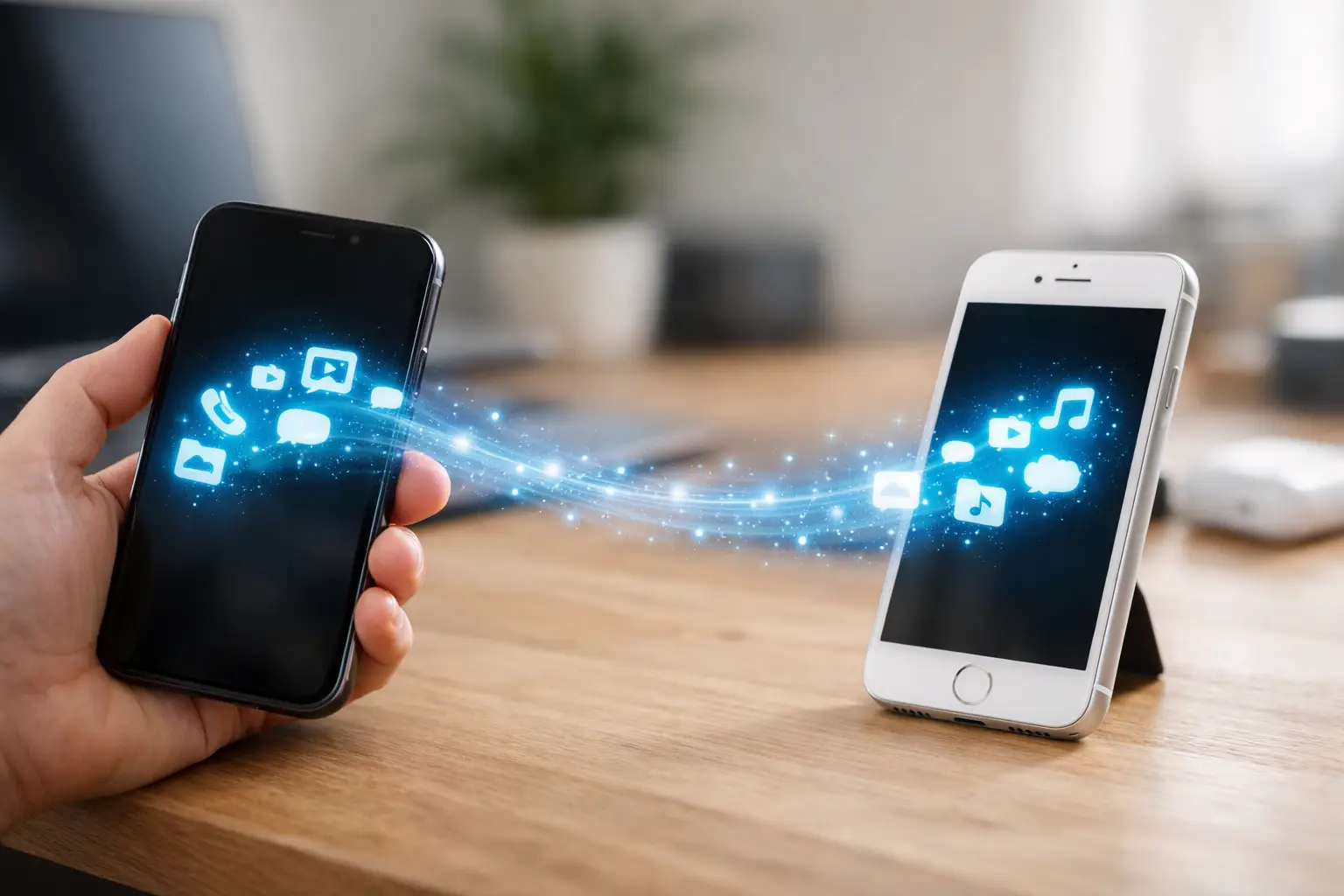
Switching to a new iPhone should feel exciting, not stressful. But when photos, WhatsApp chats, contacts, notes, and work apps all need to move over, data transfer between iPhones can quickly turn into the part people worry about most. The good news is that in most cases, Apple gives you more than one way to move your data, and the best option depends on how much you need to transfer, how fast your internet is, and whether your old phone is still working properly.
How data transfer between iPhones works
There are three common ways to move data from one iPhone to another. You can use Quick Start for a direct setup, restore from iCloud backup, or use a computer backup through Finder or iTunes. All three can work well, but they are not equal in every situation.
Quick Start is usually the easiest option if both iPhones are with you, both can turn on, and Wi-Fi and Bluetooth work normally. iCloud backup is useful when you want flexibility or when the phones are not side by side for long. A computer backup can be the better choice if you want a more complete local copy or if your internet connection is slow.
That is where many people lose time. They start with one method, hit an error halfway, and then are not sure whether the transfer is complete. A little preparation saves a lot of frustration.
Before you start the transfer
First, check that your old iPhone has enough battery or keep both devices plugged into power. Data transfers can take longer than expected, especially if you have years of photos and videos. Make sure Wi-Fi is stable, and confirm that Bluetooth is turned on if you plan to use Quick Start.
You should also update both iPhones to the latest compatible iOS version if possible. When one phone is far behind on software, setup issues become more common. If storage on the new iPhone is smaller than what is being used on the old one, you may need to remove large videos or apps before moving forward.
A quick check of your Apple Account matters too. If you do not remember your password, reset it before you begin. Activation Lock and Apple Account verification can slow everything down if you only discover the issue during setup.
Using Quick Start for data transfer between iPhones
For most users, Quick Start is the best place to start. Place the new iPhone near the old one, turn on the new device, and follow the setup prompts. The old iPhone should recognize the new one and offer the option to begin setup.
Once the devices pair, you will be asked how you want to transfer your data. If you choose direct device-to-device transfer, the phones will move your data locally. This is often a strong choice when you want your apps, settings, messages, and photos to carry over with less dependence on cloud backup timing.
The main trade-off is speed. If your old iPhone is full of media, the process can take a while. During that time, both phones need to stay nearby, powered, and connected. If either phone has battery issues, random restarts, or weak Wi-Fi hardware, Quick Start may not be the smoothest path.
When iCloud backup is the better option
iCloud backup works well when you want to prepare before your new phone arrives or when you cannot keep both phones together for long. Back up the old iPhone first, then sign in to the new iPhone and choose to restore from iCloud during setup.
This method is convenient, but it depends heavily on internet speed and available iCloud storage. If your backup is large and your upload speed is slow, the backup itself may take hours before the restore even begins. Some content may also continue downloading after the phone is usable, so the setup can feel complete before everything is really there.
That delay can confuse people. They expect every photo and app to appear immediately, but some items restore in stages. If patience is short and the phone is needed for work right away, that matters.
Using a computer for a more controlled transfer
A Mac or Windows PC can still be the most reliable choice in certain cases. You back up the old iPhone to the computer, then restore that backup to the new iPhone. This can be especially useful when internet quality is inconsistent or when you prefer having a local backup before changing devices.
For users with a lot of sensitive work data or family photos they do not want to risk, this method offers more control. It can also help when iCloud storage is full. The downside is convenience. Not everyone has a computer available, and encrypted backups need the correct password to restore items like saved passwords and health data.
What usually transfers and what needs extra attention
Most people expect everything to move exactly as it was. Often that happens, but not always. Contacts, messages, photos, app data, settings, call history, and notes usually transfer when the process is done properly. Still, some apps may ask you to sign in again, especially banking apps, authentication tools, and secure business platforms.
Media and messaging apps deserve extra attention. Photos usually move if iCloud Photos is enabled or if they are included in the backup, but apps like WhatsApp may require their own backup confirmation depending on how the data is stored. Music downloaded for offline listening may need to be downloaded again. Face ID, Apple Pay cards, and some security settings also need to be set up again by design.
That is normal, not a sign of failed transfer.
Common problems during data transfer between iPhones
The most common issue is not a broken transfer. It is an interrupted one. Phones disconnect, Wi-Fi drops, storage fills up, or the user skips a prompt too quickly. Then the new iPhone starts up partially restored, and it becomes hard to tell what is missing.
Another common issue is damaged hardware on the old iPhone. If the screen is broken, the battery drains too fast, or the phone overheats and restarts, data movement becomes less predictable. A charging issue can also stop the process before it finishes. In those cases, the transfer problem is not really about software. It is about the old device not being stable enough to complete the job.
People also run into account-related issues. Forgotten Apple Account credentials, failed verification, disabled backups, and lack of iCloud space are all frequent delays. None of these are unusual, but they do turn a simple upgrade into a long evening.
When professional help makes sense
If both iPhones are working well and you are comfortable following setup prompts, you can usually handle the transfer yourself. But there are cases where getting help saves time and protects your data.
Professional support makes sense when the old iPhone has screen damage, battery swelling, charging problems, water exposure, boot loops, or storage errors. It also helps when the data is business-critical and you cannot afford trial and error. If the transfer fails more than once, that is usually a sign to stop repeating the same process and have the devices checked properly.
This is especially true for users who need their phones up and running fast. A student can wait a few hours. A business owner managing calls, payments, client messages, and work apps usually cannot. That is where a service-focused team like Bayt Al Tech can make the process easier by handling both the transfer and any repair issue that is blocking it.
Best practices to avoid data loss
The safest approach is simple. Keep the old iPhone untouched until you confirm everything is on the new one. Do not erase the old phone right after the setup screen disappears. Open your photos, messages, notes, contacts, email, and key apps first. Check that you can sign in where needed.
If you use two-factor authentication, make sure your verification methods still work before wiping the old phone. If you rely on WhatsApp, banking apps, or work tools, test them one by one. People often assume the transfer is complete because the home screen looks familiar. That is not enough.
It is also smart to keep one fresh backup before making any major changes. That way, if the new iPhone needs to be reset and set up again, you are not starting from scratch.
Choosing the right transfer method for your situation
If both iPhones are healthy and you want the easiest path, Quick Start is usually the right call. If you need flexibility and already use iCloud, a cloud backup restore may fit better. If your internet is slow or you want a stronger fallback option, use a computer backup.
There is no single perfect method for everyone. The right choice depends on the phone condition, data size, internet speed, and how urgently you need the new device ready. What matters most is not rushing the process and not ignoring warning signs when something feels off.
A new iPhone should start with confidence. When the transfer is done properly, you keep your photos, your apps, your work, and your routine exactly where you need them.


