
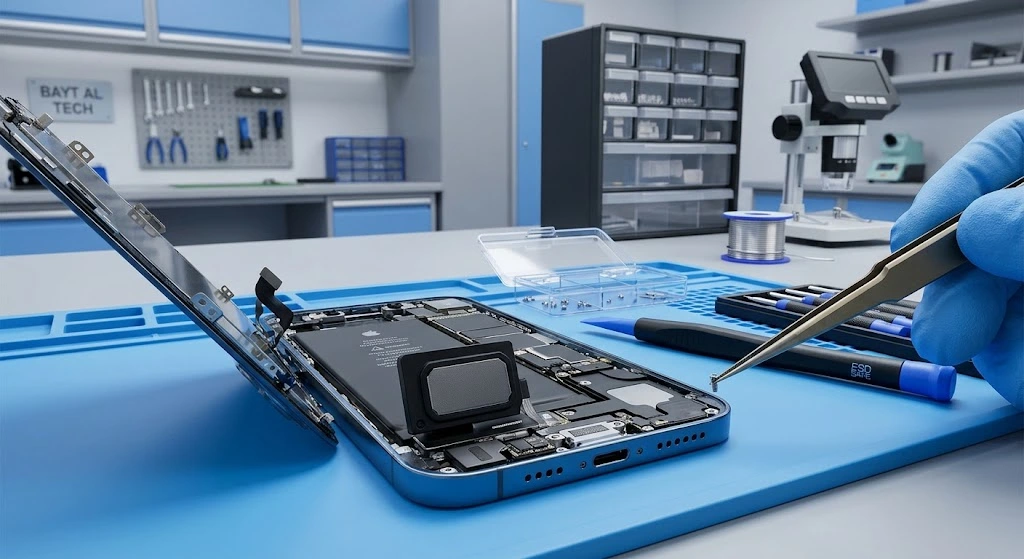
iPhone Speaker Not Working? Expert Speaker and Microphone Repair in Qatar
Is your iPhone speaker producing low sound? Can people barely hear you during phone calls? Is your microphone recording muffled audio, or has your iPhone loudspeaker stopped working completely?
These problems can interrupt your daily calls, business meetings, video recordings, and entertainment. While some iPhone audio issues can be resolved with simple troubleshooting, others require professional inspection and repair.
At Bayt Al Tech, we provide iPhone repair services in Qatar, including earpiece and loudspeaker repairs. Our team helps customers identify audio problems and determine the appropriate repair solution for their device.
If you are experiencing an iPhone speaker or microphone problem, this guide explains the common causes, practical fixes, and when to seek professional repair.
Common iPhone Speaker Problems
1. iPhone Speaker Not Working
If your iPhone plays no sound during videos, music playback, or speakerphone calls, several factors could be responsible.
Common causes include:
- Audio being routed to a Bluetooth device.
- Dirt or debris obstructing the speaker openings.
- Temporary iOS or app-related problems.
- Physical damage to the speaker component.
- Internal hardware faults.
How to troubleshoot it:
- Increase the volume while playing audio.
- Disconnect Bluetooth headphones and accessories.
- Remove your phone case and test the sound.
- Restart your iPhone and try different audio sources.
- Check the speaker openings for visible obstructions.
If the speaker remains silent after these checks, professional diagnosis may be needed.
2. iPhone Speaker Sound Is Low or Muffled
Low or muffled sound can make calls and videos difficult to hear, even when the volume is at maximum.
Dust buildup, blocked speaker openings, incorrect audio settings, or damaged hardware may cause this problem.
Clean the exterior speaker openings gently with a clean, dry, soft-bristled brush. Avoid sharp objects, liquids, and compressed air.
If the sound remains weak, a technician can inspect the speaker and determine whether cleaning, repair, or replacement is appropriate.
3. iPhone Earpiece Not Working During Calls
The earpiece is the small speaker near the top of your iPhone that lets you hear the person on the other end during a regular phone call.
If you cannot hear callers through the earpiece but can hear them using speakerphone, possible causes include an obstructed receiver, audio settings, software problems, or a hardware fault.
Try increasing the call volume, removing accessories, and restarting the phone.
If the issue continues, Bayt Al Tech can help you investigate your iPhone earpiece problem and identify the appropriate repair.
4. iPhone Speaker Making Crackling or Distorted Sounds
Crackling, buzzing, or distorted audio may indicate debris, an audio source problem, liquid exposure, or a damaged speaker.
Test several apps and reduce the volume to see whether the distortion changes. If your iPhone has recently been exposed to liquid, avoid charging it while wet and seek professional advice.
Persistent distortion should be checked by a technician before replacing any components.
Common iPhone Microphone Problems
1. People Cannot Hear You During iPhone Calls
If callers cannot hear your voice clearly, the problem may involve an obstructed microphone, Bluetooth audio routing, app or software issues, or damaged hardware.
Try disconnecting Bluetooth devices, removing accessories that may cover the microphones, and restarting the iPhone.
You can also make a test recording using Voice Memos and compare the results with a video recording. Different iPhone functions may use different microphones, so testing more than one function can help narrow down the problem.
If your voice remains unclear across multiple tests, professional inspection may be necessary.
2. iPhone Microphone Not Working in WhatsApp or Other Apps
Sometimes the microphone works during ordinary calls but fails in a particular app.
Before arranging a repair:
- Check microphone permissions in Settings.
- Confirm that the app is up to date.
- Restart the app and your iPhone.
- Test the microphone in another application.
If the microphone works elsewhere, the problem may be related to the affected app rather than a hardware failure.
3. iPhone Microphone Recording Muffled Audio
If voice recordings sound distant, quiet, or unclear, inspect the microphone openings for visible obstruction and remove any accessories that could interfere with them.
Test the microphone in a quiet environment and compare recordings made with different apps.
If the issue persists, a technician can determine whether the fault is associated with a microphone component, internal connection, or another part of the device.
Can Water Damage Cause iPhone Speaker or Microphone Problems?
Yes. Liquid exposure can affect speaker output, microphone performance, and internal electronics.
After liquid exposure:
- Disconnect cables and accessories.
- Wipe the exterior with a soft, lint-free cloth.
- Allow the device to dry in a well-ventilated area.
- Do not use rice, external heat, or compressed air.
- Avoid charging the device while it is wet.
Do not assume that a speaker needs replacement simply because it sounds muffled after getting wet. The correct solution depends on the type and extent of the damage.
If the device continues to malfunction, arrange a professional inspection.
iPhone Speaker and Microphone Repair in Qatar
When basic troubleshooting does not solve an audio problem, professional diagnosis can help prevent unnecessary repairs.
At Bayt Al Tech, customers can enquire about iPhone earpiece and loudspeaker repair services in Qatar.
Our repair service can help investigate problems such as:
- iPhone loudspeaker not working.
- Low or muffled speaker sound.
- Earpiece problems during phone calls.
- Distorted audio output.
- Microphone problems requiring hardware diagnosis.
- Audio faults following physical damage or liquid exposure.
The repair procedure depends on the iPhone model and the underlying fault. Not every audio problem requires a component replacement, so the device should be tested before a repair is recommended.
Why Contact Bayt Al Tech?
Bayt Al Tech provides iPhone repair services in Doha and surrounding areas of Qatar.
Customers can contact our team to enquire about:
- iPhone repair and maintenance.
- Earpiece and loudspeaker repair.
- Professional diagnosis of audio problems.
- Repair options and pricing for their particular iPhone model.
- Available doorstep service and collection options.
We recommend contacting us with your iPhone model and a description of the problem so that our team can advise you on the next steps.
Case Study Details: iPhone 13 Multi-Audio Fault Overhaul
1. Initial Diagnosis
- Device Model: iPhone 13
- Reported Issues:
- Loudspeaker crackles heavily when playing music or videos.
- People on phone calls can’t hear the client at all, though Siri and video recordings work fine.
- Technician Inspection & Testing Routine:
- Bluetooth Check: Verified that audio wasn’t invisibly routing to a connected pair of wireless earbuds.
- Voice Memo Test: Recorded a sample; playback was dead silent, pointing directly to a failure of the primary bottom microphone.
- Camera App Video Test: Recorded a front-facing video; audio came through clearly, proving the top/front mic array was healthy.
- Internal Examination: Upon opening the device, technicians found microscopic pocket lint tightly packed into the speaker mesh, alongside early signs of liquid residue corrosion near the charging port flex cable assembly (where the primary mic resides).
2. The Repair Solutions Applied
- Loudspeaker Module Clean & Swap: The lower loudspeaker grid was cleared, but because the internal speaker membrane had suffered permanent distortion/blown tearing from liquid exposure, the loudspeaker assembly was replaced.
- Charging Port Flex Replacement: Because the primary call microphone is integrated directly onto the charging port flex cable, swapping out this component resolved the dead microphone issue entirely.
3. Turnaround Time
- Diagnosis: 20 minutes
- Repair & Testing: 45 minutes
iPhone Speaker & Microphone Damage Types & Solutions Matrix
To help you pinpoint your specific audio problem, use this diagnostic matrix covering symptoms, root causes, professional solutions, and estimated repair costs:
Type of Audio Damage | Symptoms & Visual Signs | Root Cause | Recommended Solution | Estimated Cost Range |
Muffled / Low Speaker Output | Extremely quiet ringtones, faint loudspeaker audio, voice call sounds distant. | Heavy buildup of pocket lint, dust, or dirt compacted tightly inside the speaker grilles. | Professional ultrasonic/manual mesh cleaning or grille replacement. | Low / Often minimal service fee |
Blown Loudspeaker Crackle | Distortion, rattling, or static noise when playing music or using speakerphone at high volumes. | Playing audio at max volume for too long, tearing of the speaker cone, or liquid damage. | Full replacement of the lower loudspeaker module. | Budget-friendly component swap |
Primary Mic Failure (Callers Can’t Hear You) | Voice memos fail, Siri doesn’t respond, phone/FaceTime call recipients hear only silence. | Clogged pinhole port, or physical water/drop damage to the charging port flex assembly. | Cleaning or complete replacement of the charging port & primary mic flex cable. | Moderate component repair |
Ear Speaker Failure (Earpiece is Dead) | You cannot hear people during standard ear-to-ear phone calls, though speakerphone works fine. | Drop impact, or damage/misalignment during a previous third-party screen replacement. | Earpiece speaker module replacement or flex realignment. | Moderate component repair |
Audio IC Chip Failure (Systemic Loss) | Speaker greyed out during calls, phone freezes or loops during boot, total loss of audio drivers. | Logic board drop trauma, flexing chassis, or manufacturing board stress. | Advanced motherboard micro-soldering (Audio IC reballing/replacement). | Premium board-level repair |
Step-by-Step Home Troubleshooting Checklist
Before booking a professional repair, run through these quick checks to rule out software glitches or basic obstructions:
- Check Bluetooth & Routing: Ensure your phone isn’t accidentally routing sound to a connected Bluetooth headset or speaker tucked away in a bag.
- Inspect and Clean Grilles Gently: Take off any thick protective cases or screen protectors. Use a clean, dry, soft-bristled toothbrush to gently sweep away surface lint from the bottom ports. Never poke sharp needles or pins into the microphone pinholes.
- Verify App Permissions: Go to Settings > Privacy & Security > Microphone and verify that the apps you are using have permission enabled.
- Isolate the Component: Open the Voice Memos app to test the bottom mic, and record a short front-facing video to test the top/rear mic.
Frequently Asked Questions
How much does iPhone speaker repair cost in Qatar?
Can an iPhone microphone be repaired?
Why does my iPhone speaker sound muffled?
Can I arrange iPhone repair at my location in Qatar?
Should I replace the speaker if my iPhone has no sound?
Which iPhone models can be checked for audio problems?
Are the iPhone charging port and primary microphone the same part?
Can water damage permanently ruin iPhone speakers?
Will fixing my speaker or microphone erase my personal data?
Conclusion
Audio problems can make a high-end smartphone feel completely obsolete, but they are frequently isolated, fixable hardware components rather than dead logic boards. For our case study client, replacing the damaged loudspeaker and charging port flex cable restored their iPhone 13 to pristine acoustic performance in under an hour.
If you are dealing with persistent audio distortion, a dead microphone, or muffled speakers, seek a professional diagnosis to get your device sounding brand new again.


