
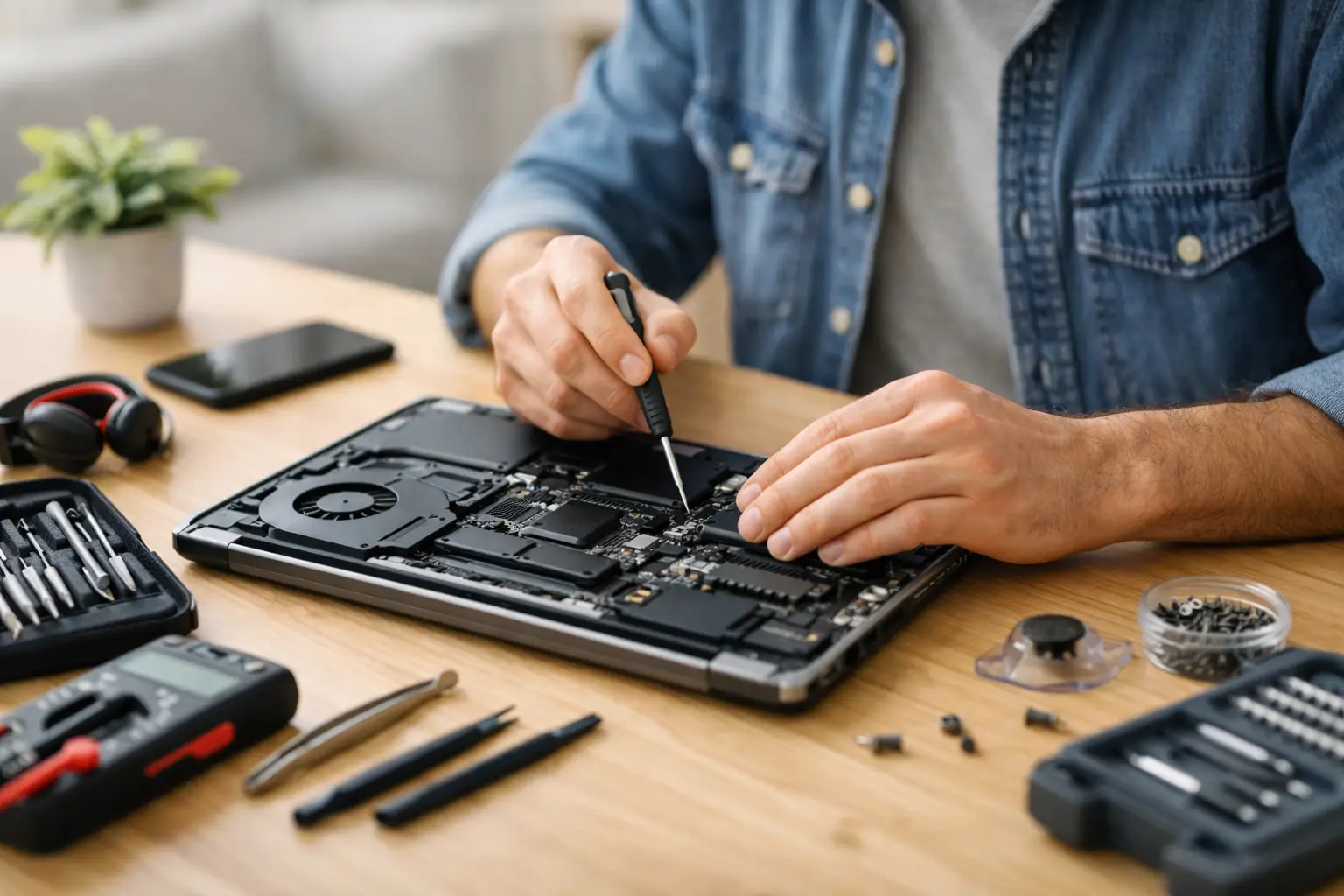
A laptop usually fails at the worst possible moment – right before a meeting, during exam week, or when you have files that cannot wait. That is why laptop repair at home sounds so appealing. If the issue is small, a few careful checks can save time, avoid travel, and get you back to work faster.
The key is knowing the difference between a simple fix and a risky one. Some problems are safe to handle at home with basic care. Others can turn a minor fault into a motherboard repair, data loss, or a full replacement bill if you push too far.
When laptop repair at home makes sense
Home repair works best for issues that involve software behavior, visible dirt, loose connections, or parts designed for simple replacement. If your laptop is slow, not charging properly, overheating, dropping Wi-Fi, or freezing during startup, there are a few sensible things to try before booking service.
It also makes sense when you can test the problem without opening the device. A charger check, battery health review, software cleanup, restart cycle, or external monitor test can often point you in the right direction. These steps are low-risk and often enough to confirm whether the problem is with the laptop, the power adapter, the screen, or the operating system.
If your device holds work documents, university projects, family photos, or business records, caution matters. A quick home fix is only worth it if it does not put your data at risk.
The safest fixes to try first
Start with power. If the laptop is not turning on, test the wall outlet, inspect the charging cable for bends or burns, and check whether the charging light appears when connected. If you have access to a compatible charger, testing with another adapter can quickly rule out one of the most common causes.
If the laptop turns on but the screen stays black, brightness settings or display output may be the issue. Connect the laptop to an external monitor or TV. If the external display works, the problem may be with the screen panel, backlight, or internal display cable rather than the whole system.
Overheating is another common case for laptop repair at home. Shut the machine down, unplug it, and inspect the air vents. Dust buildup restricts airflow and causes fan noise, lag, and sudden shutdowns. Light external cleaning with a soft brush or careful air dusting can help, but blasting compressed air too aggressively can push dust deeper inside.
Software-related slowdowns are often easier than people expect. Remove unnecessary startup apps, free up storage space, run a malware scan, and install pending operating system updates. A laptop that feels “broken” may simply be overloaded, outdated, or running background processes that drain performance.
Battery issues can sometimes be diagnosed without replacing anything. If charge percentage drops fast, the laptop only works on power, or the battery gets hot while charging, check battery health settings first. In many cases, the battery is worn out and needs replacement, but you should confirm before ordering parts.
Problems you should not force at home
There is a clear line between careful troubleshooting and repair work that needs tools, skill, and the right parts. Cracked screens, liquid damage, motherboard faults, charging port damage, swollen batteries, and broken hinges are not good DIY projects for most users.
Liquid damage is especially deceptive. A laptop may seem fine after a spill, then fail hours later as corrosion spreads. Turning it back on repeatedly can make the damage worse. The right move is to power it off, disconnect it, and get professional inspection as soon as possible.
A swollen battery is another stop sign. If the keyboard is lifting, the base looks uneven, or the trackpad feels raised, do not press on the device or keep charging it. Battery swelling is a safety issue, not just a performance issue.
Charging port problems are also easy to underestimate. If the cable only works at one angle, the port feels loose, or charging cuts in and out, the issue may involve the port itself, solder joints, or the board around it. A wrong attempt here can damage the motherboard and raise the repair cost.
Tools matter more than people think
A big reason home repair goes wrong is not confidence – it is the wrong setup. Kitchen knives, random screwdrivers, and excessive force are responsible for a lot of broken laptop covers, stripped screws, torn cables, and punctured batteries.
If you are opening a device, you need the correct precision tools, a clean surface, proper lighting, and a way to organize screws by size and position. Laptop internals are compact, and many models use delicate clips, short ribbon cables, and hidden fasteners. Even if you have watched a video for your model, real-world disassembly can be less forgiving.
Parts quality is another issue. A cheap replacement battery or charger may solve one problem and create another. Poor-quality screens can have brightness issues, color inconsistency, or early failure. That is why many customers prefer trained technicians and genuine spare parts instead of guessing their way through an online order.
How to decide if you should keep going
Ask yourself three questions before you continue with any laptop repair at home. First, can this be done without risking your data? Second, do you know the exact fault, not just the symptom? Third, do you have the right tools and replacement part for your specific model?
If the answer to any of these is no, it is smarter to stop early. A professional repair may actually be faster and less expensive than fixing the damage caused by trial and error.
This matters even more for people who use their laptops for work, study, design, sales, customer communication, or small business operations. Downtime costs more than the repair itself when deadlines are close. Convenience matters, but so does getting the job done right the first time.
What professional at-home service solves better
The best part of at-home service is that you do not need to choose between convenience and proper repair. A trained technician can test power faults, charging issues, screen problems, software errors, battery failures, and connectivity issues on-site while you stay at home or keep working.
That is often the better option when the issue is urgent but you do not want to risk opening the device yourself. It removes the travel problem, reduces delay, and gives you a clearer diagnosis right away. For customers in Doha, Bayt Al Tech fits this need well because the service is built around fast response, expert handling, and on-location support.
Professional service also helps when the problem is not obvious. A laptop that shuts down randomly could be overheating, a battery fault, a DC jack issue, a failing fan, software corruption, or board damage. Symptoms overlap, and proper diagnosis is what prevents wasted time and unnecessary parts replacement.
A smart approach saves time and money
There is nothing wrong with trying simple fixes first. Restarting the system, testing the charger, cleaning vents, checking battery health, and troubleshooting software are all reasonable steps. These are practical, low-risk actions that can solve a surprising number of laptop problems.
But the smartest users know when to stop. If you hear clicking sounds, smell burning, see screen damage, notice liquid exposure, or suspect internal hardware failure, skip the experiment. Fast expert help is the better call.
Your laptop is not just another device. It carries your work, your schedule, your photos, your accounts, and often your income. Treat small issues early, be careful with anything internal, and if the repair feels uncertain, let a trained technician handle it before a manageable problem turns into a major one.
A good repair is not always the one you do yourself – it is the one that gets your laptop back to normal quickly, safely, and without extra stress.


